Connect your AI to Arbor
Pick the assistant you use. It takes about two minutes, and you only do it once.
What it looks like
- Customize › ConnectorsAdd custom connectorArborShown in the connectors list.
https://arborsites.us/mcpThe HTTPS address where the server accepts MCP requests.Paste Arbor's address
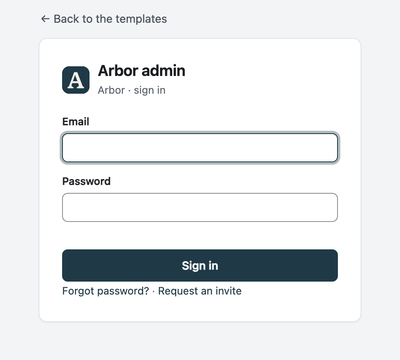
Sign in to Arbor
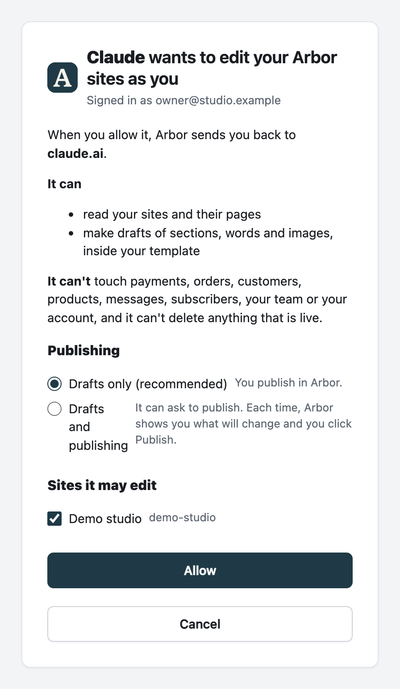
Choose your site and Allow
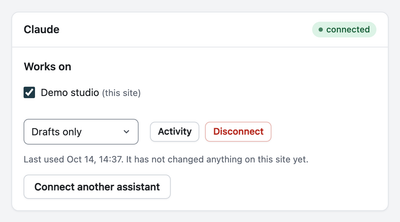
Connected
- New chat › + › ConnectorsArbor
Turn Arbor on in a chat

Works on every Claude plan. On the Free plan you can add one custom connector. On a Team or Enterprise plan, an Owner first adds Arbor under Organization settings, Connectors. Then you click Connect.
In Claude, open Customize, then Connectors, click + Add (top right), and choose Add custom connector.
CustomizeName it Arbor, paste Arbor's address, and click Continue.
https://arborsites.us/mcpCustomize › ConnectorsAdd custom connectorArborShown in the connectors list.https://arborsites.us/mcpThe HTTPS address where the server accepts MCP requests.Click Connect next to Arbor. A window opens where you sign in to Arbor.
Customize › Connectors- Arbor Custom
If Claude asks Finish connecting a connector?, click Continue connecting.
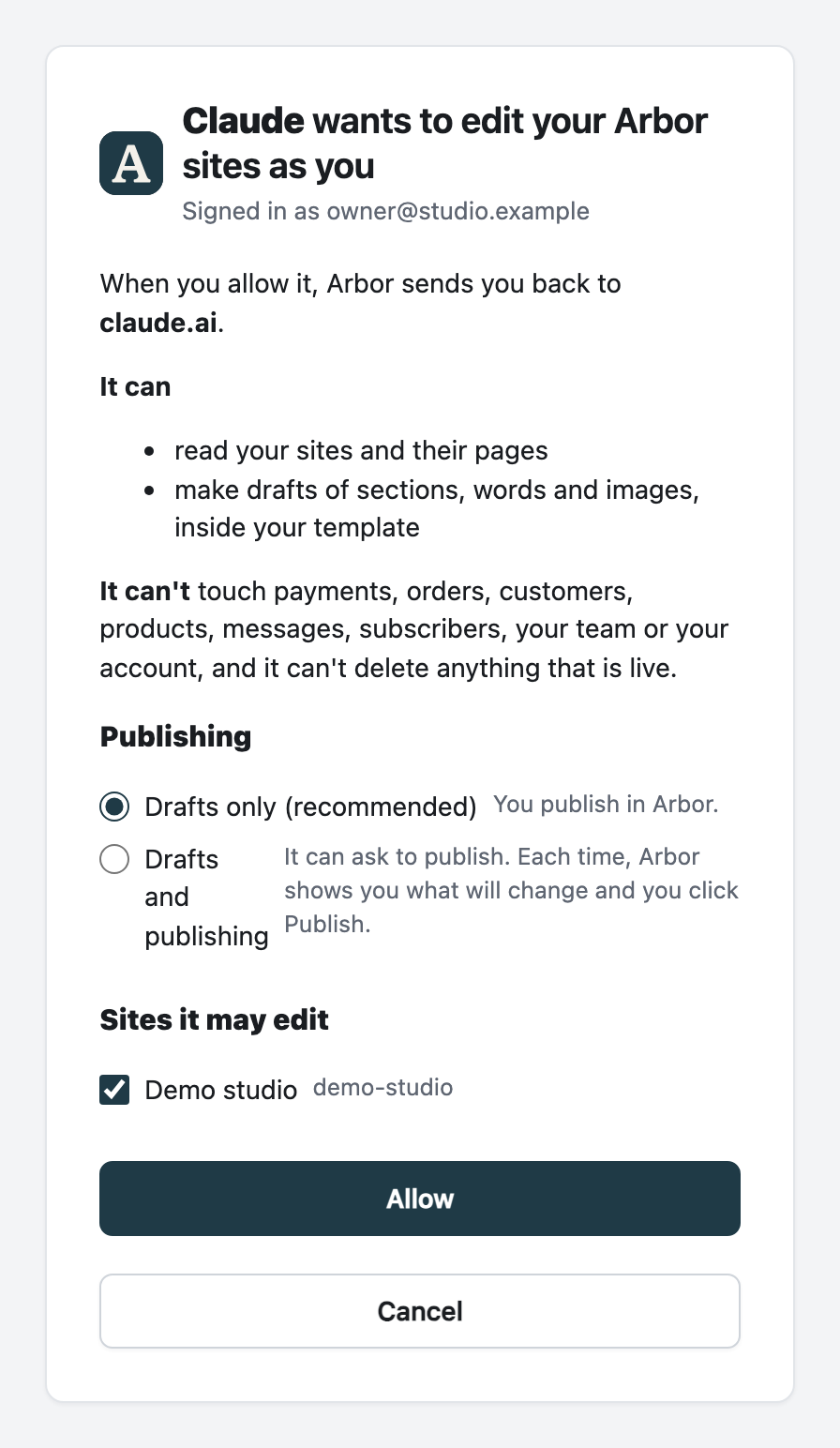
In Arbor, choose your site and click Allow.
In a chat, click the + button, then Connectors, and turn Arbor on. Then ask for what you want.
New chat › + › ConnectorsArbor
Connecting ChatGPT is coming soon. Until then, Claude works today, and you can edit your site yourself in the builder.
In a terminal, in any folder.
Add Arbor with this command.
claude mcp add --transport http arbor https://arborsites.us/mcpStart claude, type /mcp, choose arbor and Authenticate. Your browser opens. Sign in to Arbor and click Allow.
The assistant must be able to add a remote connector (it may be called an MCP server) that signs in with OAuth.
Add a connector with Arbor's address, and choose sign in (OAuth) if it asks.
https://arborsites.us/mcpSign in to Arbor, choose your site and click Allow.
What you'll see in Arbor
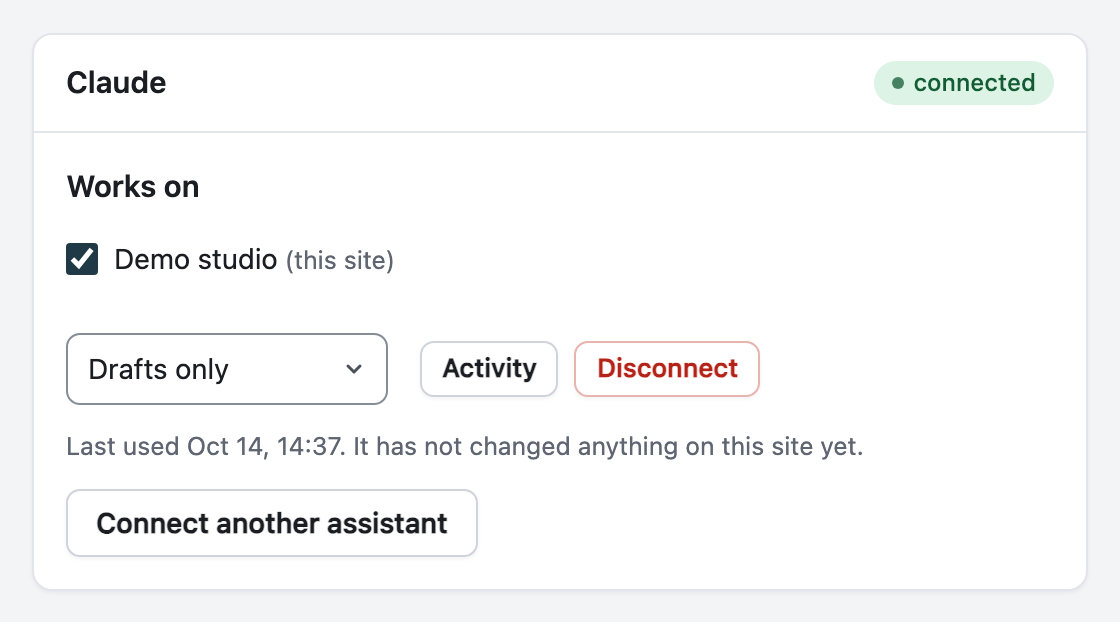
Arbor asks you to sign in, then shows what your assistant is asking for. You choose which of your sites it may work on, and whether it works on drafts only or may also ask you to publish. Nothing goes live until you say so, and you can disconnect it at any time on Your AI.
Try saying
Make this the site for my bakeryAdd an About pageMake the homepage calmer
If something goes wrong
There is no option to add a connector
In Claude, every plan can add a custom connector (one on Free). On Team and Enterprise an Owner adds it first. In ChatGPT it depends on your plan and workspace, so check OpenAI's help article. If your assistant can't add one, you can still edit your site yourself in the builder.
Claude says a connector with this URL already exists
You already have Arbor. Open it under Customize, Connectors, Yours, and click Connect (or Disconnect, then Connect, to sign in as another Arbor account).
The sign in window doesn't open
Allow pop ups for your assistant's site and try Connect again. In Claude Code, copy the address it prints and open it in your browser.
It says not allowed
Sign in to Arbor with the account that owns or manages the site, and make sure the site is ticked on the Allow screen. Staff can't publish, and a connection set to drafts only can change drafts but can't ask to publish.
How do I disconnect
In Arbor, open Your AI and click Disconnect next to the assistant. It stops at once, on every site. You can also remove Arbor from your assistant's connectors.
Last checked against Claude's and OpenAI's own setup pages on October 10, 2026.
Have an account? Log in and open Your AI. It has the same steps and tells you the moment your assistant is connected. New here? Request an invite.